The Footstrap theme
CleanWRT ships with Footstrap as its web interface. It is an ordinary LuCI theme maintained
upstream as
luci-theme-footstrap (Apache-2.0), pinned to
one commit in configs/local-packages.pin
like every other out-of-feed package here. CleanWRT changes one line of it -
patches/packages/luci-theme-footstrap/0001-login-page-carries-the-image-logo.patch puts the CleanWRT
logo on the login page where the theme otherwise prints the router's hostname - and nothing else: what
you see is the theme as its own author publishes it, selected by
files/etc/uci-defaults/96-cw-default-theme
on first boot.
What it looks like
- Dark by default, with light and auto modes, and a choice per browser as well as one saved on the router.
- A top bar or a sidebar for the menu, and a narrow-screen layout below 768 px.
- Five palettes - Footstrap, Bootstrap, 2020, Forum and Hi-Contrast - plus a free accent colour you can set by hue or by hex.
- Frosted surfaces: cards, controls and bars each take their own colour, material (flat, acrylic or frosted), opacity and a blur amount, with a corner rounding from 0 to 20 px.
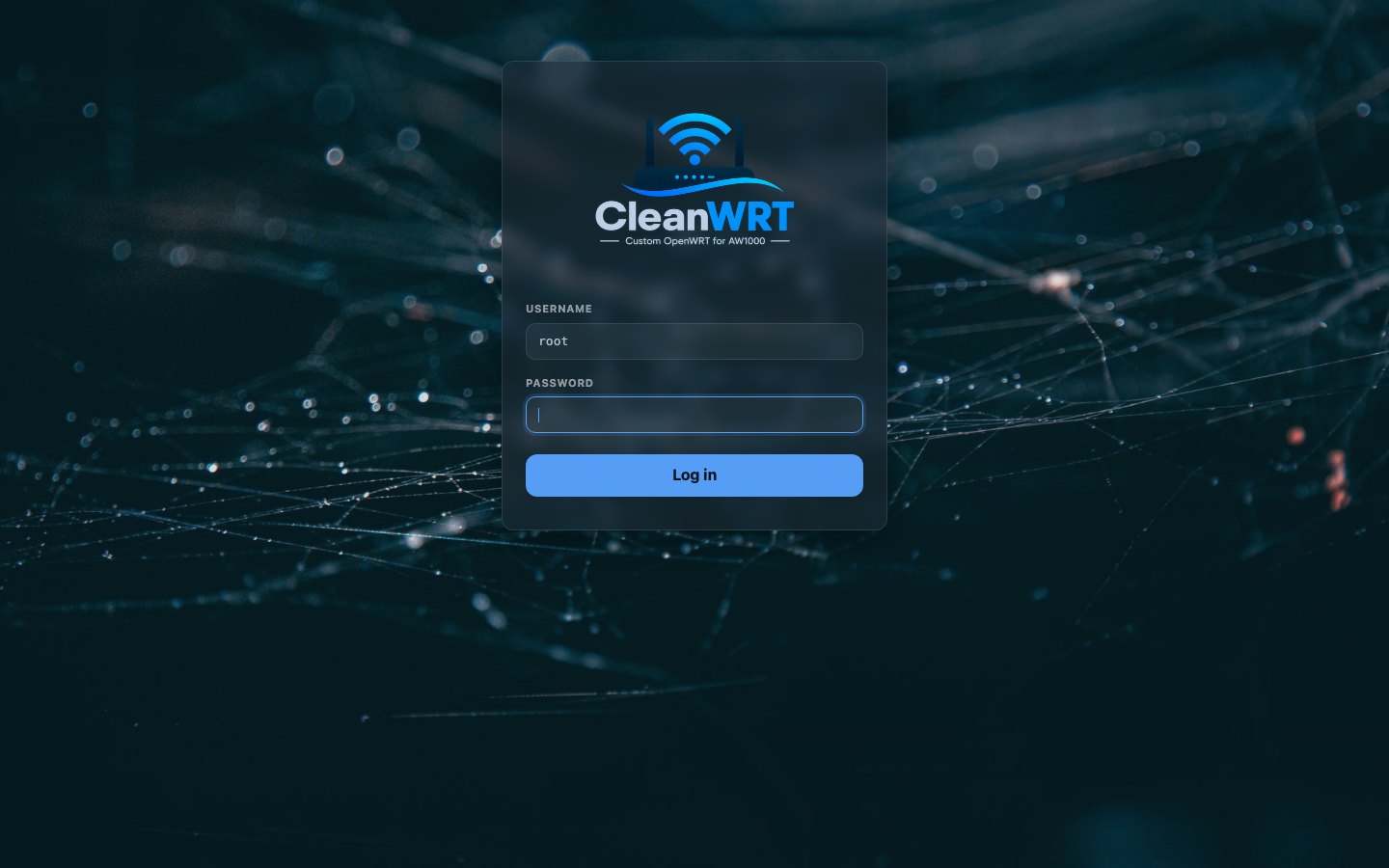
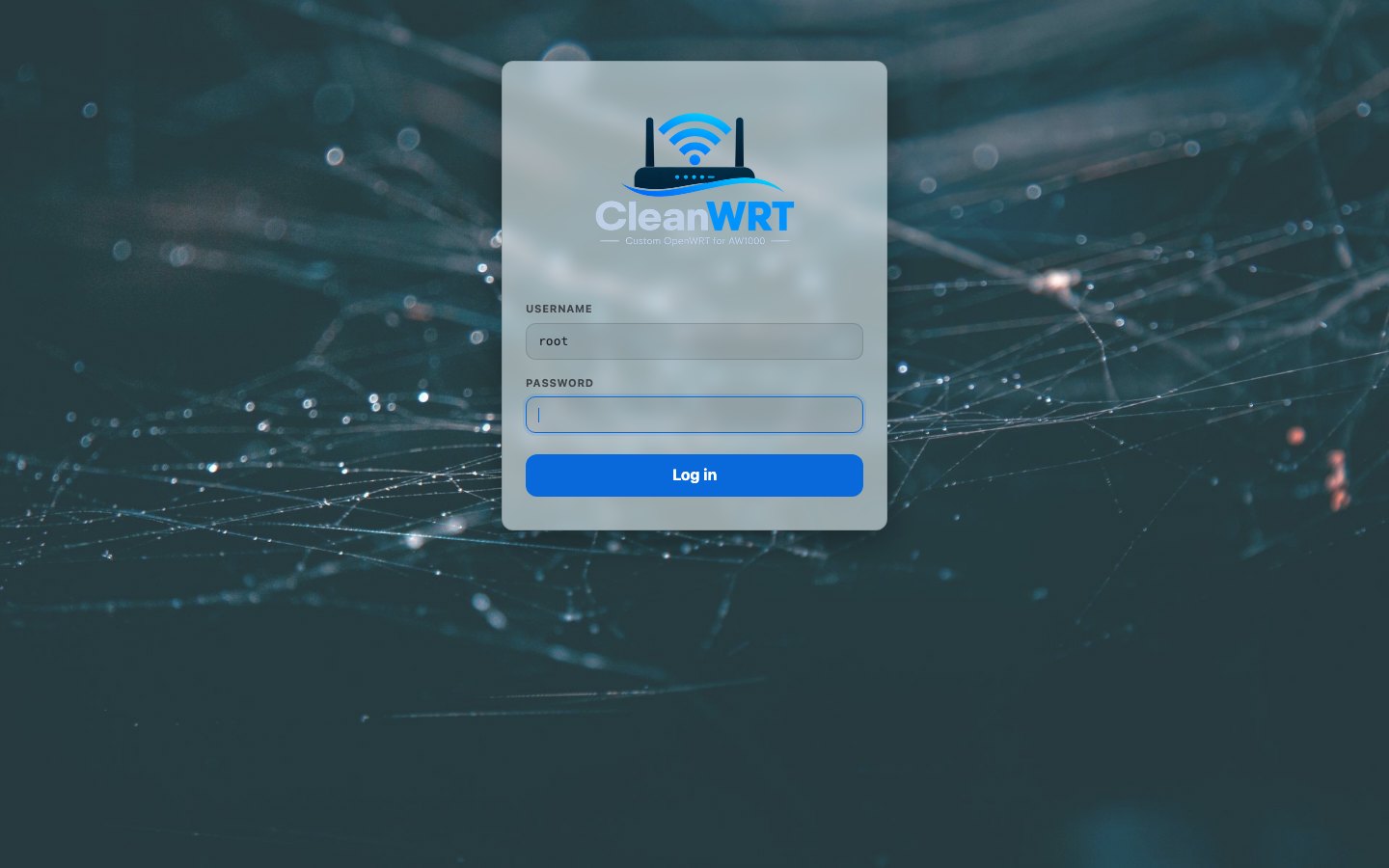
- A wallpaper behind the pages: an SVG pattern of your own, or a photo, with the pattern's size, strength and ink and the photo's dimming all adjustable. The login page takes the same photo, and carries the CleanWRT logo above the username.
- Density (normal, compact, large) and a content width from 1280 to 3840 px.
Screenshots
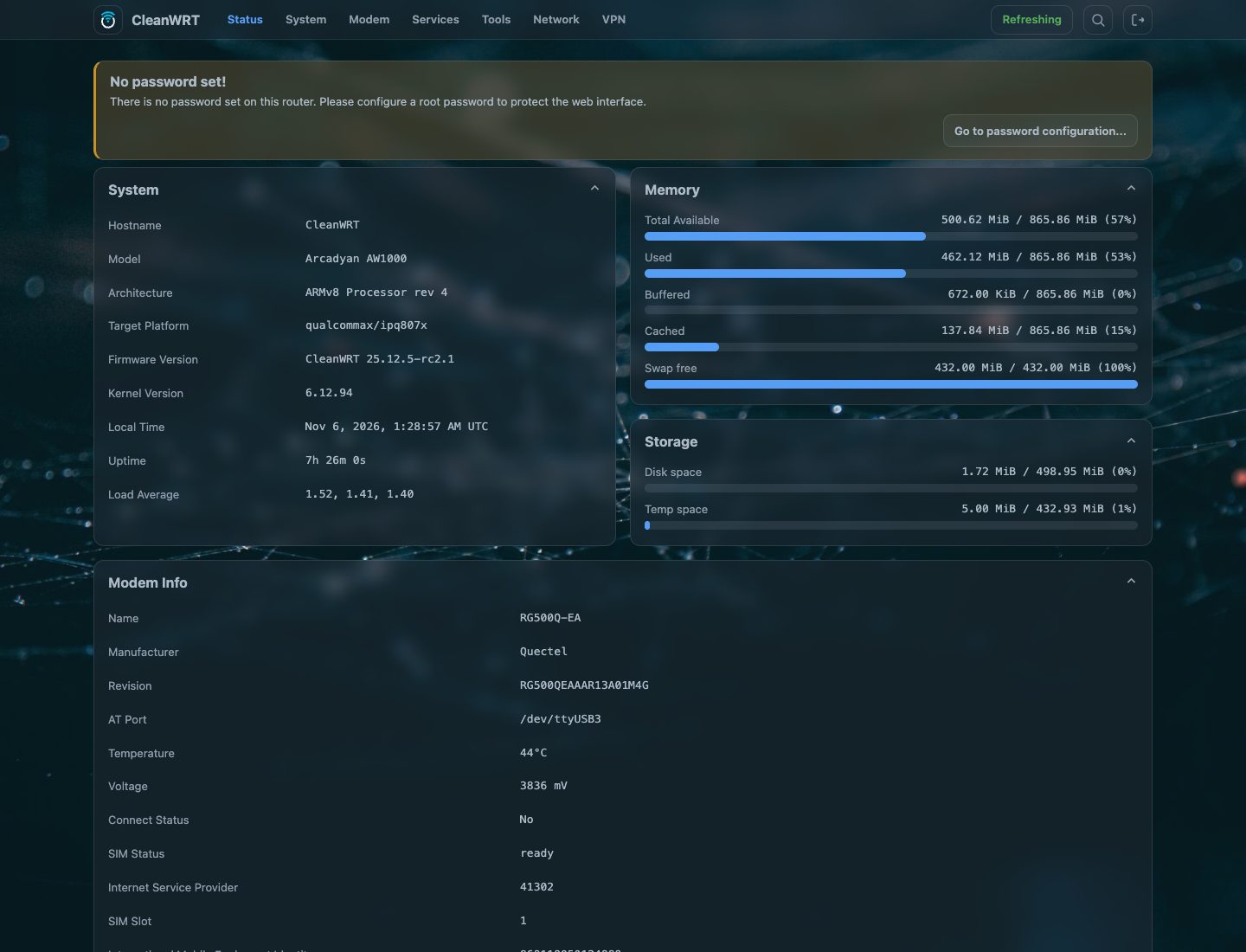
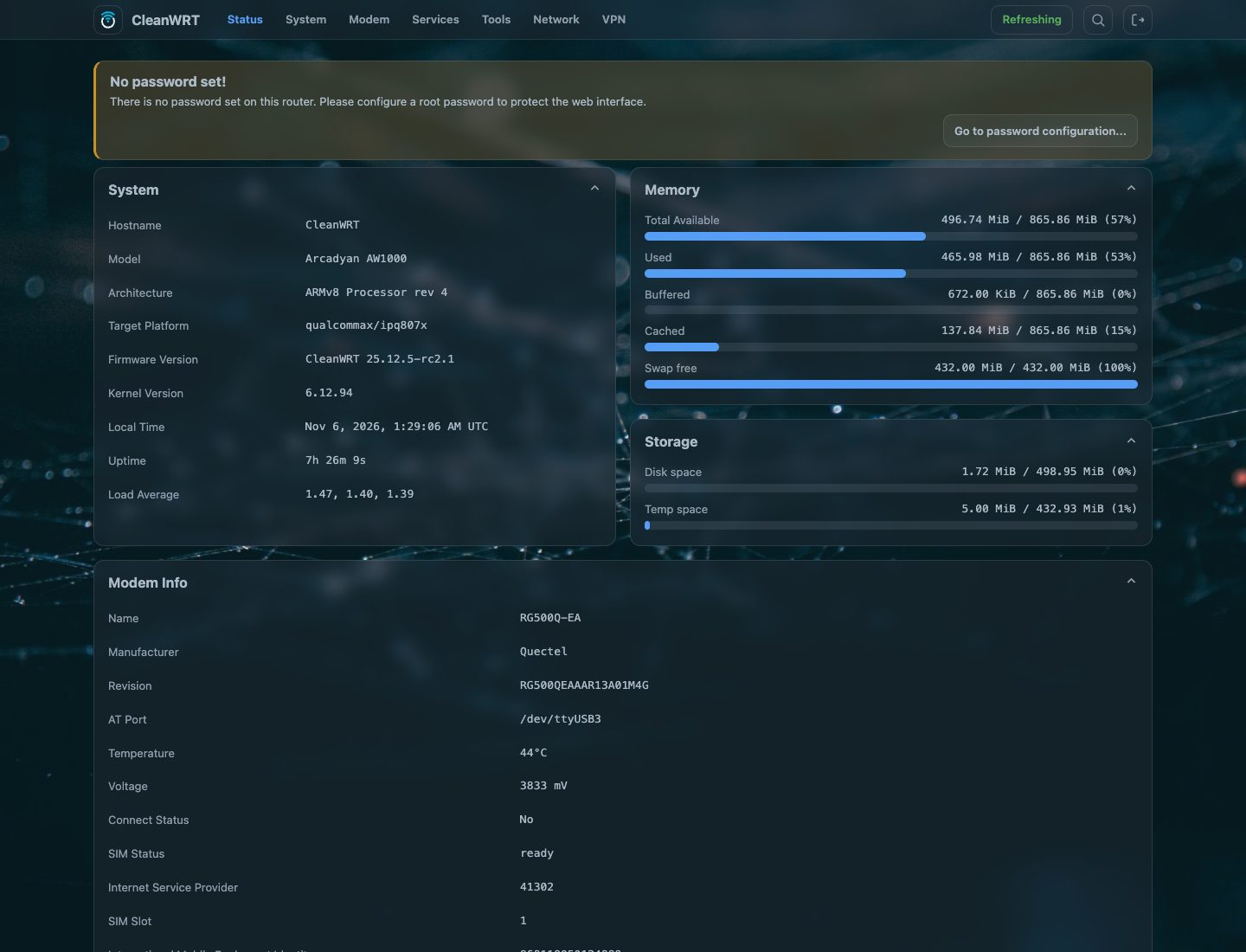
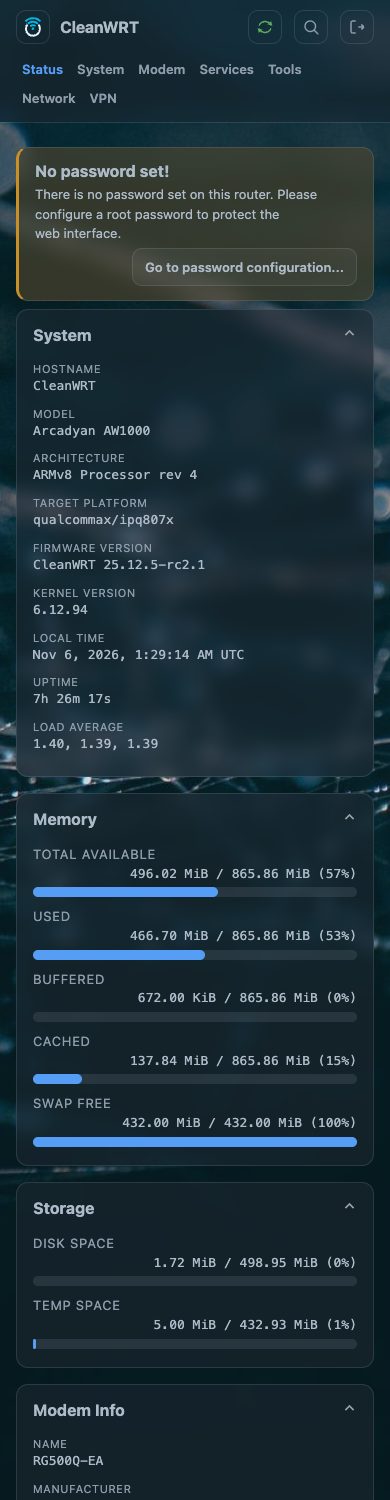
The login page, dark and light:
| Dark | Light |
|---|---|
 |
 |
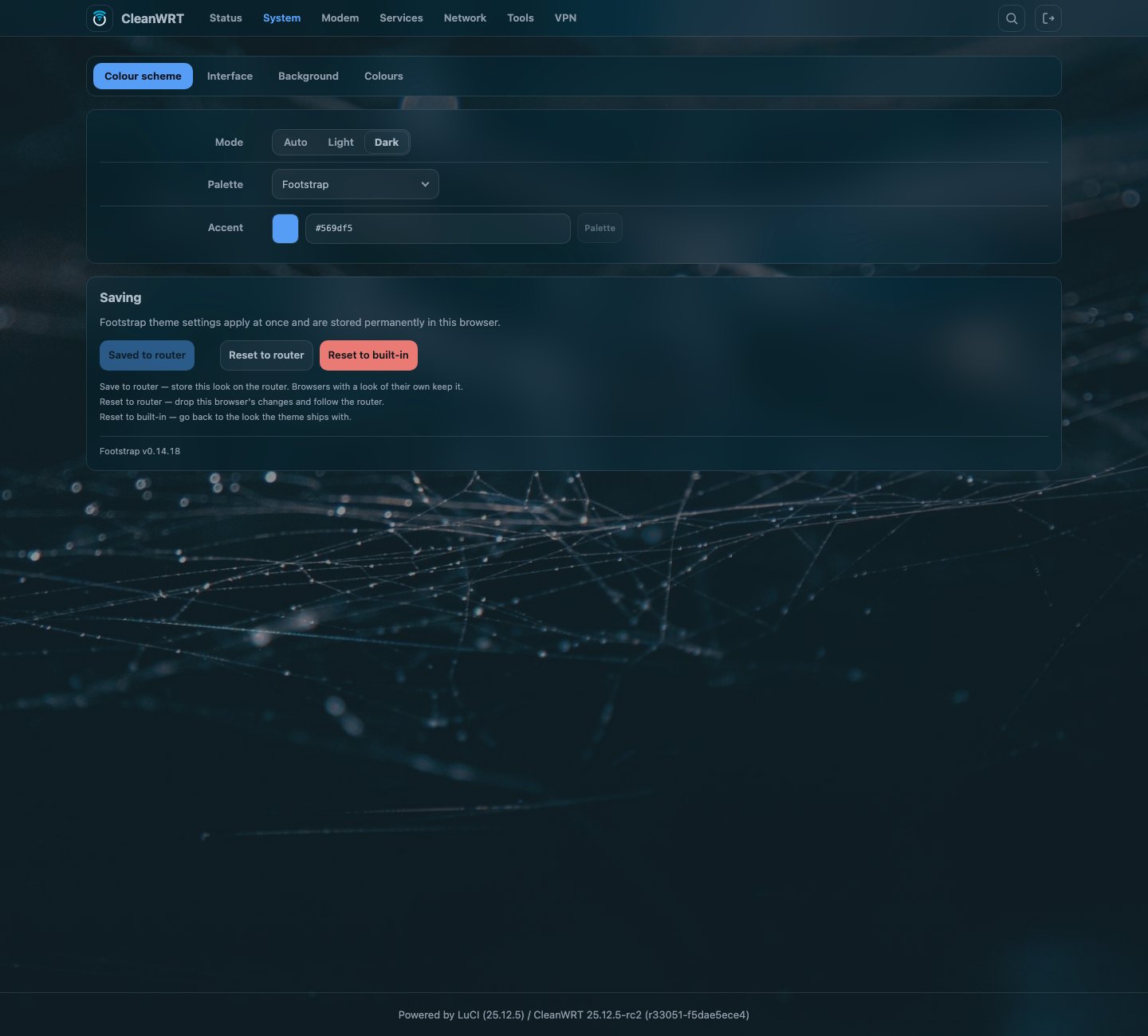
The theme's own settings page:
About the screenshots
These were taken from a real AW1000 running this firmware. The status page is LuCI's own: the theme draws its tables as boxes, and no part of it is patched by this repository.
The settings page: System → Footstrap
The theme registers one page of its own, System → Footstrap, with four tabs: Colour scheme, Interface, Background and Colours.
Changes there apply to the browser you are in immediately. Three buttons decide what happens next:
- Save to router writes the look into
/etc/config/footstrap, so every other browser and device that opens the page gets it too. A browser that has chosen its own look keeps that choice. - Reset to router drops this browser's own changes and follows the router again.
- Reset to built-in goes back to the defaults the theme itself ships with.
The look a new router starts with
A fresh install does not start at the theme's own defaults:
files/etc/uci-defaults/50-cw-footstrap-look
writes the image's default look into /etc/config/footstrap on first boot - dark mode, the top
layout, the Footstrap palette, 12 px rounding, frosted surfaces - together with the two files that
make up its background:
files/etc/footstrap/login-bg, the photo behind the pages and the login card;files/etc/footstrap/pattern.svg, the pattern the pattern wallpaper mode draws.
The two settings that name those files hold their checksums, so the script reads the checksums off the files actually installed rather than trusting a number written down. It runs once: it marks the look it applied, and a router whose look has already been saved to the router is left alone - your choice always outranks the image's.
Switching back
Footstrap is selected on the first boot. To change it later:
System → System → Language and Style → Design
The stock Bootstrap theme is the only other one in the image, and it is there as the fallback: if
the pinned theme did not install, files/etc/uci-defaults/96-cw-default-theme leaves the stock base
alone, so the web interface still opens, and Bootstrap is always a choice in the selector.
An upgrade from an older image can leave two things naming a theme this image no longer carries: the base the interface opens with, and the entry the design selector offers. Both are repaired at the first boot after the upgrade - the base moves to Footstrap and the entry is removed - so a router that had another design selected does not open on a page with no styles.
Notes for developers
The theme installs its ucode templates under
/usr/share/ucode/luci/template/themes/footstrap/ (header.ut, footer.ut, sysauth.ut and two
partials), its resources under /www/luci-static/footstrap/, its settings view at
/usr/share/luci/menu.d/luci-theme-footstrap.json pointing at footstrap/appearance, and its own
/etc/config/footstrap conffile with a first-boot script of its own. Because that conffile belongs
to the package, this repository ships no copy of it: the image's look is applied by the
uci-defaults script above instead.
The two background files live in /etc/footstrap/, which the theme's own
/lib/upgrade/keep.d/luci-theme-footstrap lists, so a sysupgrade keeps whatever the admin uploaded
there. /www/luci-static/footstrap/bg and .../fonts are symlinks into that directory.
Common questions
Does CleanWRT have a dark mode?
Yes, and it is the default. System → Footstrap → Colour scheme → Mode offers Auto (follows your system), Light and Dark; a browser can also keep its own choice, which Reset to router gives up.
Does the theme work on a phone?
Yes. The layout collapses below 768 px, and the density and content width are adjustable on the settings page.
How do I switch back to the default OpenWrt theme?
Go to System → System → Language and Style → Design and pick Bootstrap. Bootstrap stays installed in the image precisely so that this is always possible.
Does CleanWRT patch the theme?
One line, for branding: the login page shows the CleanWRT logo instead of the router's hostname.
Everything else is the upstream package at its pinned commit. The logo is this repository's own
file (files/www/luci-static/cw-branding/login-logo.png), outside the theme's directory, so a
theme update can neither overwrite it nor collide with the patch. The look a new router starts
with is added by a first-boot script and two background files, not by a patch.