First boot
CleanWRT follows the stock OpenWrt first-login model.
Defaults
| Address | 192.168.1.1 |
| Hostname | CleanWRT |
| Root password | none (set it on first login) |
| Wi-Fi | on, WPA2-PSK, networks CleanWRT-2.4G, CleanWRT-5G (and CleanWRT-6G on a 6 GHz radio) |
| Default Wi-Fi key | CleanWRT#40 |
| Time zone | UTC (set yours in LuCI) |
| Admin UI | LuCI over HTTPS (self-signed certificate) |
| The phone line | on. awvoice.main.enabled ships as 1, so a desk phone works the first time you plug one in |
| The network phone (SIP) side | off. No SIP port is open and no SIP process runs until the AWvoice page's switch starts it |
| The front-panel LED daemon | on |
| The TTL rewrite for tethering | on, at 64 |
| Opt-in apps | installed and off, with one exception: the Samba daemon starts, but its share allows no guest access, so nothing is reachable until you add users |
Change both on the first login
Anyone who knows the default Wi-Fi key can join your network, and with no root password anyone on the LAN can log in. Do the steps below before you connect the router to anything you do not trust.
Steps
- Connect a computer to a LAN port with Ethernet. Do not use Wi-Fi for the first login.
- Open
http://192.168.1.1. The browser is moved to HTTPS and shows a certificate warning. That is expected, see Security. - LuCI asks you to set a root password. Set a strong one. It applies to LuCI and SSH.
-
Change the Wi-Fi key: Network → Wireless, edit each interface, Wireless Security.
uci set wireless.default_radio0.key='your-strong-key' uci set wireless.default_radio1.key='your-strong-key' uci commit wireless && wifi reload -
Set your time zone: System → System → General Settings.
- Open Modem and check that the 5G modem registered. See The 5G modem.
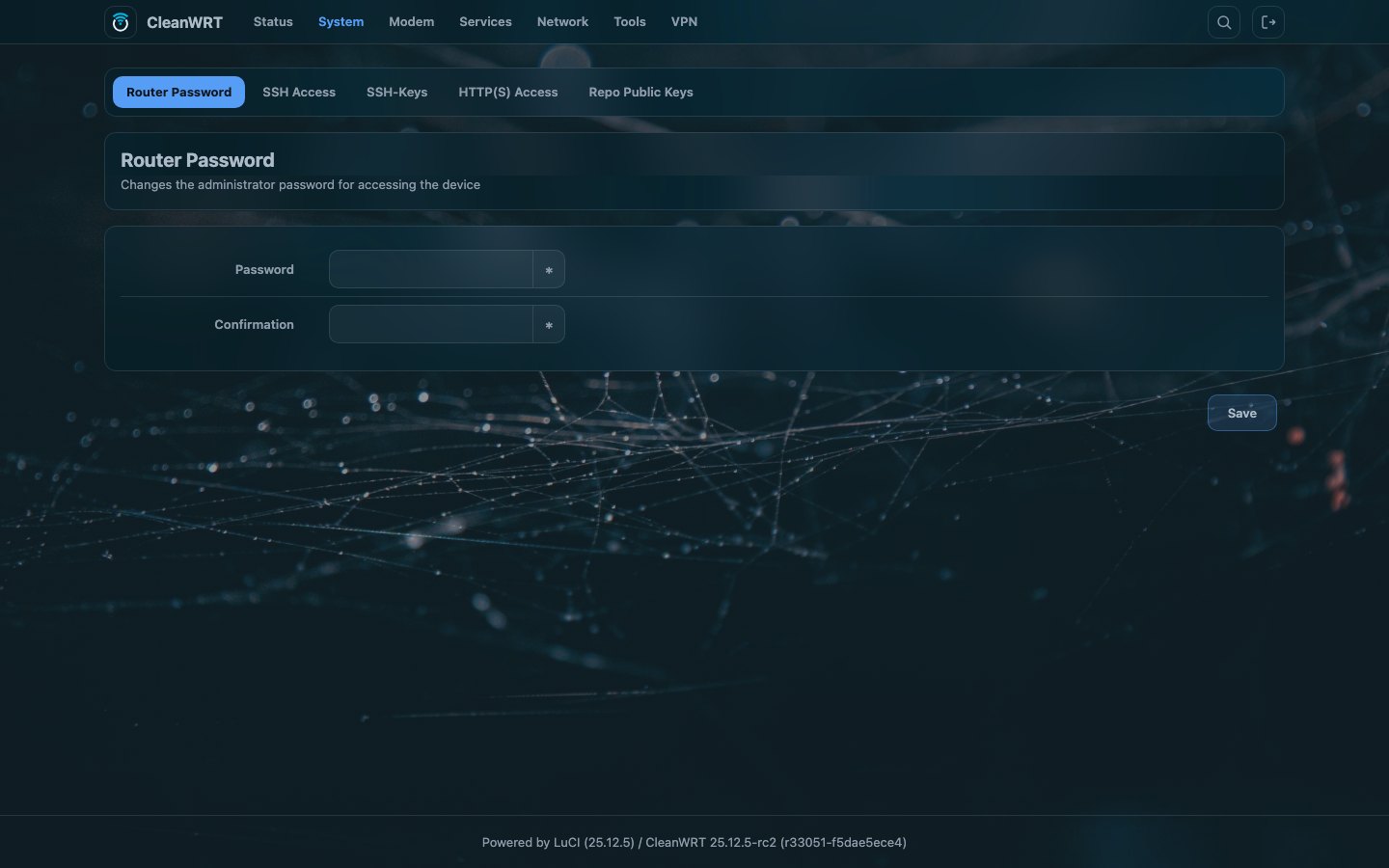
The root password is set under System → Administration:
Upgrades with keep settings never overwrite a key you have set yourself.
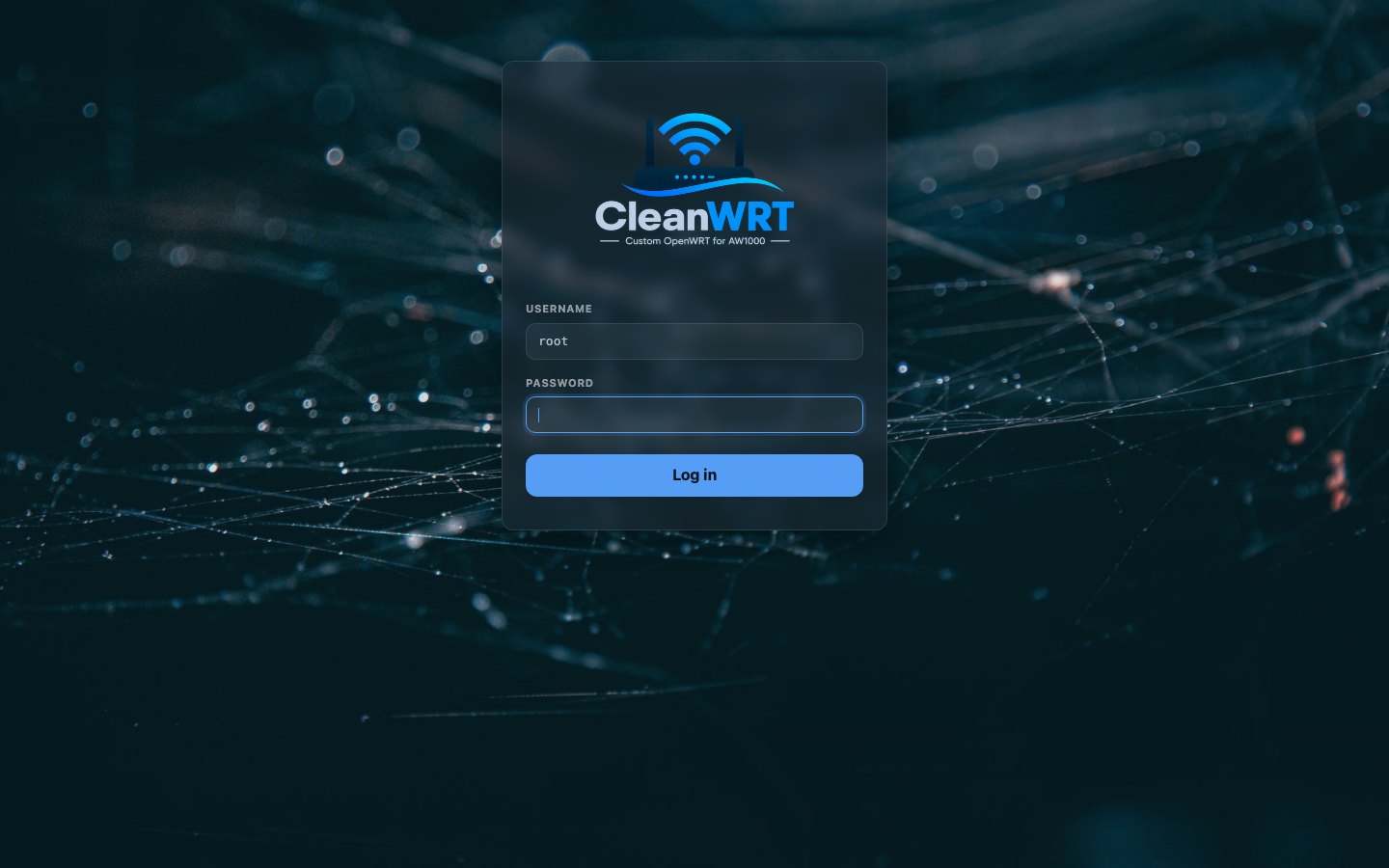
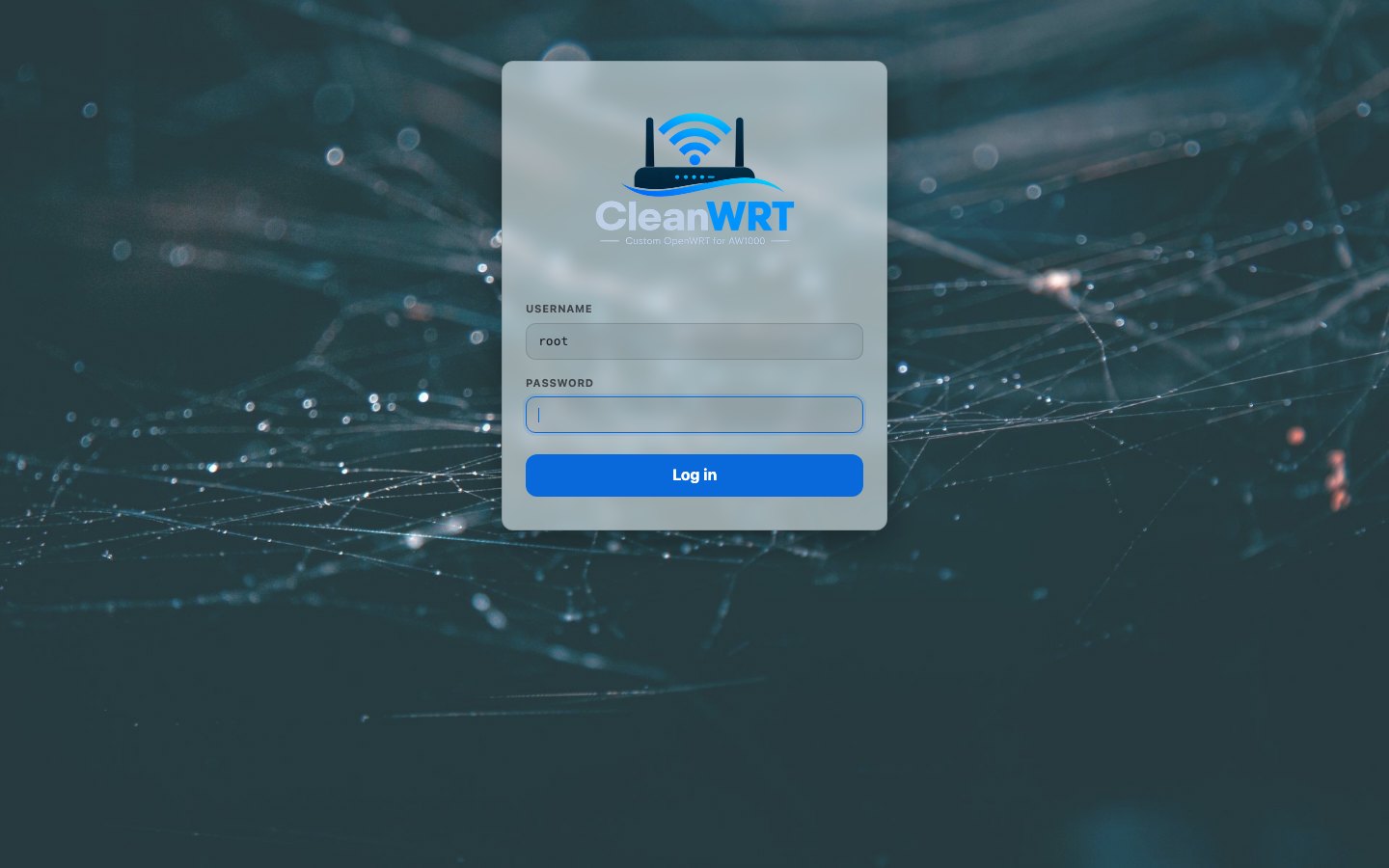
The login page, in dark and light mode:
| Dark | Light |
|---|---|
 |
 |
A short tour of LuCI
| Menu | What is there |
|---|---|
| Status | overview widgets (system, modem, memory, storage), logs, traffic |
| System | administration, mount points, LED Management, theme |
| Services | Passwall, HomeProxy, Tailscale, Cloudflare Tunnel, Adblock, AdGuard Home, Syncthing, qBittorrent, miniDLNA, Disk Manager |
| Network | interfaces, wireless, firewall, SQM, file sharing |
| Modem | QModem, 3gInfo-lite, SMS, TTL |
| Services → AWvoice(RJ11) | AWvoice: the phone port |
| VPN | OpenVPN |
| Tools | file manager, bandwidth monitor, watchcat, terminal |
Turning on an app
Every opt-in app has the same single switch: open its LuCI page, tick Enable, press Save & Apply. Set any passwords the app needs before you enable it. See What is included.
What the image did before you got here
Thirteen first-boot scripts wrote the defaults above — the hostname, the SSIDs and the key, the
HTTPS redirect, the theme's look, the LED ownership, the AT port handed to the phone service, the
vendor VoIP engine taken off the boot path, and the package pins that keep apk upgrade from
replacing patched LuCI packages. All of it, script by script and option by option, is in
first-boot defaults.